
Webflow address autocomplete NZ
Webflow NZ address autocomplete
guide Webflow forms can use StreetKit through custom code, the hosted JavaScript widget, and selected New Zealand address data. This is a guide pattern, not an official Webflow app.
Current status
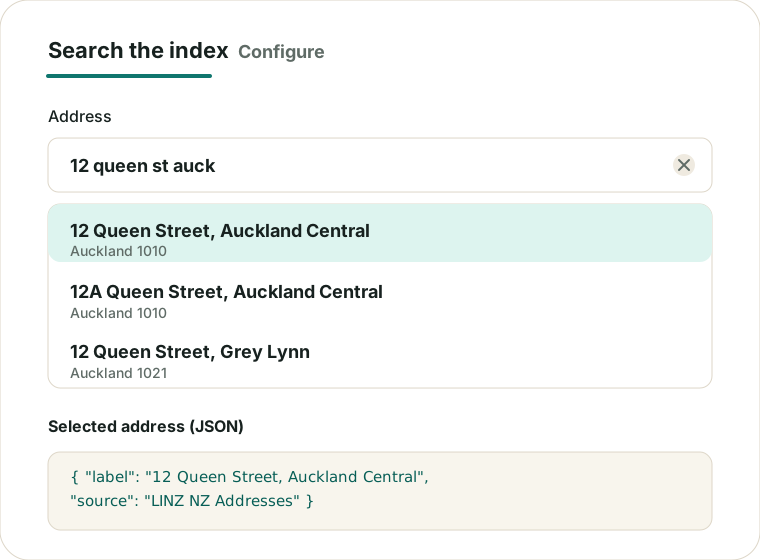
StreetKit has a generic browser widget that can attach to a normal Webflow form input when the published page exposes stable selectors. No StreetKit Webflow marketplace app, managed platform installer, or Webflow ecommerce checkout integration is claimed.
Copy-paste setup concept
- Add a normal address field to the Webflow form.
- Give the address field a stable ID, such as
streetkit-address. - Add optional suburb, city, postcode, and hidden metadata fields only when your form needs them.
- Paste the StreetKit CSS in the page or project head custom code.
- Paste the StreetKit script and init block before the closing body tag.
- Publish and test the live Webflow page, because selectors must match published markup.
Widget snippet
<link rel="stylesheet" href="https://streetkit.smp.kiwi/widget/streetkit.css">
<script src="https://streetkit.smp.kiwi/widget/streetkit.js" defer></script>
<script>
  window.Webflow ||= [];
  window.Webflow.push(() => {
    if (!window.StreetKit) return;

    StreetKit.init({
      input: "#streetkit-address",
      publicMode: true,
      indexBaseUrl: "https://index.streetkit.smp.kiwi/public/v1",
      fields: {
        line1: "#streetkit-address",
        suburb: "#streetkit-suburb",
        city: "#streetkit-city",
        postcode: "#streetkit-postcode"
      },
      onError(error) {
        console.warn("StreetKit error", error.code);
      }
    });
  });
</script>
Replace the selectors with the IDs from the published Webflow form. For production registered access, request a StreetKit site ID and use the matching customer index path.
Field mapping concept
Address input
The widget attaches to one input and updates it when a shopper or form user selects a suggestion.
Visible fields
Map suburb, city, and postcode only to fields that already exist and have stable published IDs.
Metadata fields
Add hidden fields only if the form owner wants to capture the selected address ID, label, coordinates, or source version.
Manual fallback
Keep the form submit path independent of StreetKit so the form still works if custom code or StreetKit assets fail.
Publish and test checklist
- Confirm the published page contains the expected field IDs.
- Confirm the StreetKit CSS and JavaScript load without blocking form submission.
- Select an address and verify mapped fields receive the expected values.
- Rename no Webflow fields after launch without updating the selectors.
- Leave manual address entry available for addresses that are not suggested.
Limitations
- This is a guide using the generic StreetKit browser widget.
- There is no official StreetKit Webflow app, marketplace app, or one-click installer.
- Selectors must match published Webflow markup; renaming fields can break mapping.
- StreetKit does not scan whole forms or automatically discover hidden fields.
- Webflow ecommerce checkout behavior is not claimed by this guide.
- StreetKit is not address verification, NZ Post delivery certification, or a delivery guarantee.
Next steps
Read the Webflow integration guide, request a StreetKit site ID, or try the address autocomplete demo.
Start with the NZ address autocomplete page for the product overview. The same widget configuration is documented in the HTML / JavaScript guide, widget configuration, and privacy notes.